HomeAI Integration

Connect your account with your AI interface

Connect your Claude, Cursor, Windsurf or Codex interface directly with your Capital.com account. Access live market data, position reviews and order management.

MCP setup guide
laptop

Make trades from within your AI interface

5,500+ markets, one interface

Access CFDs across forex, indices, commodities, shares and crypto. 38 tools and 7 guided workflows combine market data and risk checks into one flow – ready for you to review and confirm.

You stay in control

Confirm every order before it's placed. Market orders execute on confirmation. Working orders execute automatically once your price is reached, with no second confirmation needed.

Built in the open

The Capital.com MCP server is open-source on GitHub. Inspect it, fork it, extend it.

How to connect your AI interface to your trading account

Step 1: Get set-up

Open your Capital.com account, authenticate 2FA and generate your API Key.

Step 2: Install

Download the Capital.com MCP server from GitHub and install it on your machine. Full setup instructions are in the MCP setup guide.

Set up on GitHub

Step 3: Connect

Open your AI interface – Claude, Cursor, Windsurf or Codex – and add Capital.com as an MCP server. Your account credentials stay on your machine.

MCP setup guide

Step 4: Start trading

Your AI interface is now connected to your Capital.com account. See everything you can do in the section below.

You're responsible for the actions of any third-party AI tool you connect to your account.

What you can do with our MCP integration

Market data

Search instruments, get live prices, view order books and check market hours. All in real time, straight from your AI interface.

Account operations

View your open positions, account balance, margin levels and full trading history at any time.

Trading

Place and modify orders, and close positions across all available markets. Preview and confirm each order before it's placed.

Watchlists

Create, update and manage your watchlists through natural language instructions.

Real-time streaming

Live price feeds and P&L updates via WebSocket – your AI interface receives the latest available market data.

Session management

Authenticate securely, manage your session and control your connection to the Capital.com platform.

Trading CFDs carries risk of loss and may not be suitable for all investors.

Compatible AIs

The Capital.com MCP server works with any MCP-compatible AI interface. Confirmed integrations:
award
award
award
award
Claude, Cursor, Windsurf and Codex are trademarks of their respective owners. They are displayed solely for identification and informational purposes. Capital.com is not affiliated with, sponsored by or endorsed by these companies.

Regulated AI trading

Capital.com is a regulated CFD broker. AI-assisted trading via the Capital.com MCP server is subject to the same regulatory standards as all trading on the platform.

Risk warning

CFDs are complex leveraged instruments and come with a high risk of losing money. These products are not suitable for everyone and you should therefore consider your objectives, financial situation, needs and experience with these products before investing in them.

Our Product Disclosure Statement (PDS) and Target Market Determination provides important information about our products and who our products are more likely to be suited to. Capital.com does not provide financial or investment advice and you should seek independent advice if you are unsure of the risks or whether our products are suitable for you. Capital Com Australia Pty Ltd (ABN 47 625 601 489) is a company incorporated in Australia and regulated by the Australian Securities and Investments Commission (AFSL 513393). Our offices are located at Level 15, 357 Collins Street, Melbourne, 3000. Your use of the Capital.com Public API and any third-party tools you connect to it, including AI or LLM-based tools, is at your own discretion and risk. Capital.com operates on an execution-only basis and does not control, endorse, or accept liability for any third-party software, its outputs, or any resulting outcomes. Nothing on this page constitutes investment advice or a recommendation to trade.

You are solely responsible for all trading decisions, configurations, and automated activity on your account, (including any price differences arising from latency introduced by third-party tools or systems outside Capital.com's control) and must ensure your use complies with Capital.com's Terms and Conditions, Electronic Trading Terms, and all applicable laws in your jurisdiction. [Read full disclaimer]

Where AI or LLM-based tools are used to retrieve market data or pricing information, there may be a delay between the price communicated by the tool and the price at which any resulting order is executed. Market orders execute on confirmation. Working orders execute automatically once your price is reached, with no second confirmation needed. Capital.com accepts no liability for any difference between a price displayed or communicated at the time of a request and the actual execution price.

Capital.com does not control the outputs of third-party AI or LLM-based tools connected to the Public API and cannot guarantee that such tools will not generate content that could be construed as investment advice or a personal recommendation. Any such output is not provided by or on behalf of Capital.com and should not be relied upon as advice.

Frequently asked questions

With the Capital.com MCP server, you get access to 38 tools across 7 categories – all through your AI interface.

What is the Capital.com AI trading platform?

The Capital.com MCP Server is open-source software that lets you connect AI tools – including Claude, Cursor, Windsurf, or Codex – to your Capital.com account.

Once connected, you can ask your AI tool in plain language to:

  • Check live prices and market details
  • Review your open positions, balance and margin
  • Prepare orders and show you a preview before anything is placed


The AI doesn't independently make trading decisions on your behalf: the order preview lets you check the details, and a separate confirmation step lets you approve submission.

What is AI trading, and how does it work?

AI trading describes the use of artificial intelligence tools as part of a trading strategy.

There are two common approaches:

  • AI-assisted trading – you use AI tools to analyse markets and prepare orders, but decide whether to place each trade.
  • Fully automated trading – you set up an AI system to open and close positions based on predefined rules or model outputs, without approving each trade.


The Capital.com MCP Server supports AI-assisted trading, which means you can use it to retrieve information and prepare orders. You can then review the order details and confirm whether to submit it.

For example, you might ask your AI tool to 'show my open positions'. The MCP server retrieves the information through the Capital.com Public API, and your AI tool displays it in your conversation.

What can I ask my AI assistant to do on Capital.com?

With the Capital.com MCP Server, you can check market prices and trading hours, review your account balance, margin, open positions and trading history, manage watchlists and working orders, and prepare or close trades.

You can also monitor selected markets, set price alerts and track changes in your profit or loss.

For example, you might ask your AI trading assistant to:

  • 'Show my open positions and the margin each one uses.'
  • 'Compare the current spreads on AUD/USD and USD/CAD.'
  • 'Get daily copper prices for the last three months.'
  • 'Create a watchlist called Energy and add natural gas and US crude oil.'
  • 'Show my pending limit and stop orders.'
  • 'Preview buying 1 Microsoft share CFD with a stop-loss 5% below the current price.'


You can check an order's details before confirming whether to submit it. You'll also need to confirm before closing a position.

AI tools can make mistakes, and prices and spreads may change before execution, so check key figures on the Capital.com platform before making trading decisions. Capital.com doesn't control third-party AI responses or provide investment advice.

Which AI tools work with Capital.com?

The Capital.com MCP Server works with Claude, Cursor, Windsurf, and Codex.

Model Context Protocol (MCP) is an open standard that lets AI tools communicate with external services, which means the Capital.com MCP Server also works with other MCP-compatible AI trading tools, depending on their requirements.

To use the Capital.com MCP Server, you’ll need a computer (mobile devices aren't supported). For Claude trading, you can connect the MCP directly to Claude Desktop or Claude Code – or alternatively, use the MCP settings in Cursor, Windsurf or Codex.

How do I connect Claude to my Capital.com account?

To set up Claude trading, connect Claude Desktop to your Capital.com account:

  1. Create your API key. Enable two-factor authentication (2FA) in your Capital.com settings, then go to 'Settings' > 'API integrations' to generate a key. Give it a name, create a separate API password and enter your 2FA code. Your API credentials are shown only once, so save them somewhere private and don't share them in AI chats.
  2. Get the Capital.com MCP Server. Download the MCP Server from the Capital.com GitHub repository as a ZIP file and open the capital-mcp.mcpb file inside it. Alternatively, you can install it manually with Docker, or with Python 3.10 or later and Git.
  3. Connect it to Claude Desktop. Double-click the capital-mcp.mcpb file or drag it into Claude Desktop. Enter your API key, Capital.com login email and API password, make sure the environment is set to demo, then install and enable the server.
  4. Test the connection. Fully quit and reopen Claude Desktop, then ask 'List my accounts' to check that it's working.


If you prefer, you can connect the Capital.com MCP Server to Cursor, Windsurf, or Codex instead, using their respective MCP settings.

For more details, see the Capital.com MCP Server setup guide.

Can I try AI trading on a demo account first?

Yes. The Capital.com MCP Server connects to a demo trading account by default.

A demo account lets you check that the connection works, see how trade previews are presented and practise confirming orders. You can also top up your demo balance through your AI tool.

Before you switch from demo to live:

  • Ensure your test prompts return valid data and that you've previewed and confirmed at least one trade in demo mode.
  • Read Capital.com's Terms and Conditions and Electronic Trading Terms.
  • Review the server's trading permissions and risk limits, then change the environment setting in your MCP configuration from demo to live and restart your AI tool.


Demo trading uses virtual funds and can't fully reflect live execution conditions or the psychological and financial impact of trading with real money. Results from simulated trading don't necessarily reflect live performance.

Learn more about the Capital.com demo account.

Can AI trade automatically on my behalf?

Not independently. Unlike an AI trading agent or automated trading bot, the Capital.com MCP Server doesn't run its own trading strategy or decide what to trade.

Your AI tool prepares an order preview for you to review before a separate confirmation step. Each preview expires after two minutes, and your AI tool's permissions determine how confirmation works.

Once confirmed, market orders are submitted for execution, although the final price may differ. Working orders can execute later without further confirmation, while stop-loss and take-profit orders can automatically close positions when triggered.

Orders may still be rejected. Standard stop-loss orders don't guarantee an execution price, while guaranteed stop-loss orders, where available, incur a fee if triggered.

What is the difference between an AI trading platform, a trading bot and the Capital.com API?

An AI trading platform uses artificial intelligence to support activities such as market analysis and trading. The Capital.com MCP Server connects a compatible AI tool to your account, so you can retrieve information and prepare orders using plain language. You can review each order before confirming whether to submit it.

With an automated or AI trading bot, you set up a system to place trades based on predefined rules or model outputs, without approving each order.

The Capital.com Public API is a trading API that provides the underlying REST and WebSocket connections that developers use to build trading tools, including bots and AI integrations. Using it directly generally requires programming knowledge, while the MCP Server requires an API key and a compatible AI tool.

Automated trading carries additional risks, including configuration errors and orders placed without review. Whichever approach you use, you're responsible for orders placed on your account.

What is an MCP server?

An MCP server is software that lets an AI tool communicate with an external service. MCP stands for Model Context Protocol, an open standard introduced by Anthropic.

The Capital.com MCP Server runs on your computer and connects your AI tool to your trading account through the Capital.com Public API. When you make a request, it sends it to Capital.com using your API credentials, then returns the response to your AI tool.

The Capital.com MCP Server is open-source and available on GitHub under the MIT licence, so developers can inspect, modify and extend the code.

Is my account safe when I connect an AI tool?

Connecting an AI tool gives it access to your Capital.com account through an API key with trading permissions.

To create a key, you need two-factor authentication (2FA) and a separate API password. Keys expire after one year by default, or sooner if you choose. You can pause or delete them at any time under 'Settings' > 'API integrations' to stop access.

The Capital.com MCP Server runs on your computer and stores credentials locally. Keep them private and don't share them in chats or documents. Your AI provider may also process, log or store account information under its own privacy policy.

You can restrict which markets the tool can trade, set position-size and daily-order limits, or disable trading through the MCP Server. However, these controls don't change the API key's permissions – Capital.com doesn't currently offer read-only API keys.

Only download the MCP Server from the Capital.com GitHub repository.

Is the Capital.com MCP Server free to use?

Yes. The Capital.com MCP Server is free to use, with no subscription fee. Standard trading costs still apply, which may include spreads, overnight funding, currency conversion fees and guaranteed stop-loss fees if triggered.

Third-party AI tools may require a paid plan for MCP connections.

Learn more on the Capital.com fees page.

Is AI trading on Capital.com regulated?

Yes. Trades placed through the Capital.com MCP Server are handled by the regulated Capital.com entity that holds your account, under the same regulatory framework as trades placed directly on the platform.

Capital Com Australia Pty Ltd (ABN 47 625 601 489) is regulated by the Australian Securities and Investments Commission (ASIC) under AFSL 513393. If you're comparing options for AI trading in Australia, it's worth checking how the broker behind it is regulated.

However, the AI tool you connect is third-party software. Capital.com's regulatory status doesn't mean the AI provider is regulated or approved by the same authority. Capital.com doesn't control or endorse its responses, which shouldn't be treated as investment advice from Capital.com.

Is AI trading legal in Australia?

Capital.com supports AI-assisted trading through its Public API, subject to applicable terms and Australian law. When you use the Capital.com AI trading platform in Australia, your orders are handled by Capital Com Australia Pty Ltd, which is regulated by ASIC.

The rules governing trading with AI can differ depending on where you live and how you use the tool. You're responsible for your trading decisions and for complying with Capital.com's Terms and Conditions, Electronic Trading Terms and applicable laws. You can't give a third party discretionary control over your account.

AI tools can support your research, but their outputs may be unreliable and they don't remove trading risk. Capital.com operates on an execution-only basis and doesn't provide legal or investment advice. Seek independent advice if you're unsure which rules apply.

Does AI trading actually work?

It depends on what you expect it to do. AI trading tools can bring market and account information together, but they can't reliably predict price movements or remove trading risk.

With the Capital.com MCP Server, you can check live prices, review open positions, margin and profit or loss, and prepare orders for confirmation. You can also monitor selected markets and set price alerts, which notify you without placing trades.

AI trading assistants can provide inaccurate information, so check key details before making trading decisions. When trading with AI, outcomes still depend on market conditions and your decisions, and leverage amplifies both profits and losses. Past performance is not a reliable indicator of future results.

What markets can I trade with AI on Capital.com?

The Capital.com MCP Server lets you trade CFDs on markets including forex, indices, commodities, shares and cryptocurrencies, subject to availability in your account and region. This includes AI forex trading, AI stock trading through share CFDs and AI crypto trading through cryptocurrency CFDs.

AI CFD trading doesn't change how CFDs work. CFDs are traded on margin, and leverage amplifies both potential profits and losses.

What is the minimum deposit to start AI trading on Capital.com?

The minimum deposit to start AI trading in Australia with Capital Com Australia Pty Ltd is 20 AUD, USD or EUR for most payment methods. Wire transfers require at least 250 AUD, or the equivalent in your account's base currency.

You don't need to deposit funds to try the Capital.com MCP Server on a demo account, which uses virtual funds. Capital.com doesn't charge deposit fees, although standard trading costs still apply when trading live.

For the latest deposit requirements and trading costs, see the Capital.com fees page.

One system, every screen

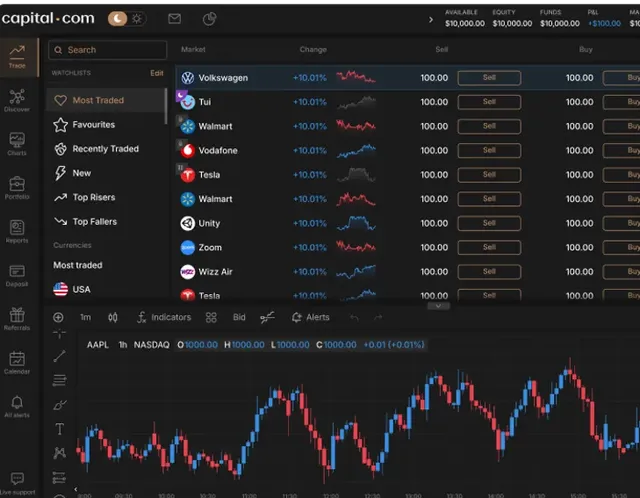
Web platform

Price alerts, watchlists and AI Search, all built into the platform.
Image

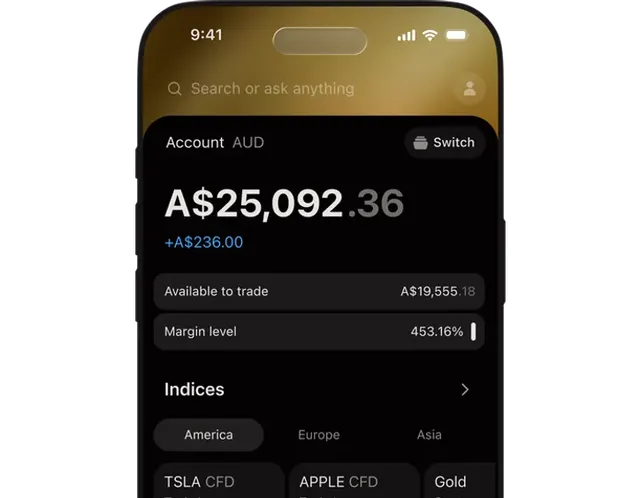
Mobile app

Market navigation and the full suite of platform tools, wherever you are.
QR code
Scan to Download
QR code
Scan to Download
Image